Win-Test Contest Recorder in Wine under Linux
If you want to record your received and transmitted audio signal in a contest with Win-Test Contest Logger under Wine in Linux, you may find this information useful:
Within a Windows OS it’s quite simple. You just follow the instruction in the Win-Test Wiki, make the appropriate settings within Win-Test, set the audio levels of your sound device and the Contest Recorder works fine.
Within a Linux OS, it’s basically the same way, but a little bit different:
1 - Load the LAME ACM MP3 Codec ZIP file (currently 3.99.5) from free-codecs.com
2 - Unzip the content to C:\LAME\ within Wine. The Wine C:\ drive is usually something like /home/username/.wine/drive_c/
3 - Open a terminal and execute the following 3 commands:
wine cmd
cd .wine\drive_c\windows\syswow64
rundll32 setupapi.dll,InstallHinfSection DefaultInstall 0 C:\LAME\LameACM.inf
Close the terminal and open Win-Test. Go to ‘Options’ => ‘MP3 configuration’ and check the settings for the Sound Devices. In my case it’s “PulseAudio Output” for the Player and “PulseAudio Input” for the Recorder. The Available MPEG Codec has to be set to “LAME MP3 Codec v0.9.2 - 3.99.5”.
My settings for the recording itself are Mono, 32000 Hz Sample Rate and 64 kbBit/s Bit Rate, which gives me about 660 MB per 24 hours of recording.
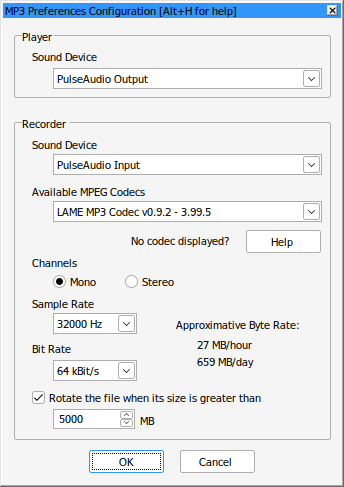
Win-Test MP3 configuration in Linux Mint 21.3